










You'd think Google Workspace would include a project management tool, given how much else it offers. It doesn't, at least not a dedicated one.
That leaves teams with a choice: piece together Sheets, Calendar, and Tasks into a DIY system, or connect a third-party tool that's built for the job. Here's how to figure out which path is right for your team and when it's time to stop DIY-ing it.
Key takeaways
- Google Workspace lacks a dedicated project management tool, so teams either combine native apps like Sheets, Calendar, and Tasks or connect third-party tools from the Google Workspace Marketplace.
- Native Google apps fall short for growing teams because they lack automated dependency tracking, resource allocation, unified views across apps, and built-in time or budget tracking.
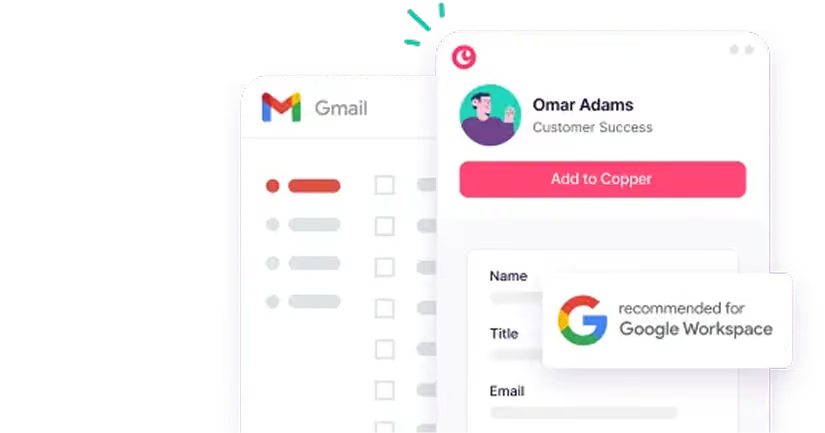
- Copper is the only CRM with Google's "Recommended for Google Workspace" designation and works directly inside Gmail, Calendar, and Drive for combined client relationship and project management.
- Teams managing multiple client projects, tracking task dependencies, or onboarding new members frequently benefit from purpose-built project management tools over DIY spreadsheet systems.
Does Google have its own project management tool?
Google doesn't offer a dedicated, standalone project management application. That's the short answer, and it surprises a lot of people who assume Google Workspace would include one.
What you get instead are two paths. First, you can piece together native apps like Sheets, Calendar, Tasks, and Drive into a DIY project management system. Second, you can connect a third-party tool from the Google Workspace Marketplace that's built specifically for managing projects.
Both approaches work, though they serve different situations. The DIY route is fine for simple projects or small teams. But once you're juggling multiple clients or coordinating across several people, a purpose-built tool usually makes life easier.
Google Workspace apps you can use for project management
Even without a dedicated PM tool, Google Workspace gives you building blocks to create a basic project workflow. This approach works well for smaller teams or straightforward projects where you don't need features like automated task dependencies or resource tracking.
Google Sheets for project tracking
Sheets are the most flexible option for tracking tasks manually. You can set up columns for task names, owners, due dates, and status, then use dropdowns and conditional formatting to keep things organized. Some teams even create basic Gantt-style charts by formatting cells as a timeline.
The tradeoff is that everything stays manual. When a task status changes, someone has to update the spreadsheet.
Google Calendar for timelines and deadlines
Calendar works well for tracking deadlines, meetings, and major milestones. Shared calendars give your team visibility into what's coming up, which helps with coordination.
That said, Calendar doesn't connect to your task list automatically. If a deadline shifts, you'll update it in one place but not the other.
Google Tasks for assigning action items
Tasks handles personal to-do lists and can turn Gmail messages into action items with a single click. It's handy for tracking your own responsibilities, though it's more individual-focused than team-focused.
Google Drive for project files
Drive serves as your central repository for documents, spreadsheets, and presentations. Real-time collaboration means everyone works from the same version, and organizing folders by project or client keeps files accessible.
Google Docs for meeting notes and plans
Docs work well for collaborative meeting notes, project briefs, and planning documents. Everything syncs automatically with Drive, so your team can access the latest version without emailing attachments back and forth.
Google apps have real limitations as project management software
The DIY approach works until it doesn't. Here's where native Google apps typically fall short:
- No automated dependency tracking: You can't link tasks so one automatically starts when another finishes. Every handoff requires manual coordination.
- No resource allocation: There's no way to see who's overloaded or available across projects.
- No unified view: Each app is siloed. Sheets doesn't talk to Calendar, which doesn't talk to Tasks. You end up checking multiple places to understand project status, losing up to five working weeks annually to app-switching.
- Manual updates everywhere: A status change in one app doesn't sync to the others. You're updating the same information in multiple places.
- No time or budget tracking: Professional services teams often track billable hours and project costs, which requires maintaining yet another spreadsheet.
Signs your team has outgrown Google's native tools
How do you know when it's time to move beyond the DIY approach? A few patterns tend to emerge.
Your team is growing past a handful of people
What works for three people often falls apart at ten. Coordination becomes chaotic when multiple people update separate spreadsheets, and it gets harder to know who's working on what.
You're juggling multiple client projects at once
Switching between separate Sheets and folders for each project creates confusion. Details slip through the cracks, and teams spend up to 1.8 hours per day searching for information rather than actually working.
Tasks have dependencies you can't track in Sheets
Dependencies happen when one task can't start until another finishes. In client work, this is common. Tracking dependencies manually almost always leads to missed handoffs or delays.
You need time and budget tracking
If you're billing clients for your time or managing project budgets, native apps don't offer built-in tracking. You'll end up maintaining another spreadsheet, which adds more manual work.
Onboarding new teammates takes too long
When a new hire needs hours to understand your cobbled-together system, that's a clear signal. A dedicated tool with clear workflows speeds up onboarding significantly.
Here’s what to look for in a Google Workspace project management tool
If you've decided to explore third-party tools, here's what matters most for teams already working in Google Workspace:
- Native Google Workspace integration: Look for tools that sync with Gmail, Calendar, and Drive without manual imports or constant tab-switching.
- "Recommended for Google Workspace" designation: This badge means Google has vetted the integration for security and functionality. It's a good signal that the tool plays well with your existing setup.
- Ease of use: The tool shouldn't require weeks of training. It should feel intuitive from day one.
- Combined CRM and project management: For professional services teams, managing client relationships and project delivery in one place saves time and reduces context-switching.
- Automation features: Automated task assignments, reminders, and status updates reduce the manual work that bogs down your team.
Copper is the only CRM that carries the "Recommended for Google Workspace" designation, which is worth noting if you're looking for something that integrates deeply with Gmail and the rest of your Google tools.
That integration depth is what made the real difference for RHR. After adopting Copper alongside Google Workspace, the firm reduced its software footprint from 27 systems down to 22, consolidating work that had previously been scattered across too many platforms.
Their team reported saving 60–80% on system costs by leaning into Google Workspace, with Copper helping them get more out of the core Google apps they were already using. Ariell Heacox, project coordinator at RHR, put it simply: "I love that we can just connect files from Google Drive into an opportunity in Copper. When someone is looking for something specific and needs it fast, they can just go in there and find that file." Add in automated recurring tasks, automatically organized email threads, and hands-free calendar invites, and you can see how the right integration turns a collection of apps into a genuinely connected workflow.
Read the full case study
Best project management tools for Google Workspace
Here's a look at popular options that integrate with Google Workspace. Some are pure PM tools, while others combine CRM with project management.
Copper
Copper is a CRM and project management tool built specifically for Google Workspace. It appears directly inside Gmail, Calendar, and Drive, so you don't switch tabs to manage contacts, track conversations, or update project status. Copper is the only CRM that's "Recommended for Google Workspace" and is backed by Google Ventures. It works especially well for professional services teams managing the full client journey from lead to project delivery.
Asana
Asana is a popular standalone PM tool with Google Calendar and Drive integrations. It's strong for task management and team coordination, though you'll switch away from Gmail to use it.
ClickUp
ClickUp is a feature-rich PM platform with Google integrations. It packs in a lot of customization options, though that flexibility comes with a steeper learning curve.
Monday.com
Monday.com is a visual work management platform known for colorful boards and customization options. It integrates with Google Workspace, though the integration isn't as deep as native tools.
Trello
Trello uses a simple Kanban-style board approach with Google Drive attachments and Calendar power-ups. It's best for visual thinkers with straightforward workflows.
Wrike
Wrike is built for bigger, more complex projects with Google Workspace add-ons. It's often used by larger teams with complex project requirements.
Smartsheet
Smartsheet takes a spreadsheet-style approach to project management, which feels familiar to Sheets users. It offers Google integrations and works well for teams comfortable with grid-based views.
Notion
Notion is a flexible workspace tool that can be customized for project management. You can embed Google Calendar and link to Drive files, though it requires setup to function as a true PM tool.
Zoho Projects
Zoho Projects is part of the broader Zoho suite with Google Workspace integrations. It's a better fit if you're already using other Zoho products.
Free Google Workspace project management tools
Many teams start by looking for free options. Here's what's available:
- Google Tasks: Free with any Google account, but limited to personal to-dos without team features.
- TasksBoard: Adds Kanban views to Google Tasks with a free tier available.
- Trello: Free tier includes basic boards and Google Drive attachments.
- Notion: Free for individuals with basic PM features.
- Copper: Offers a 14-day free trial to test full CRM and project management features.
Most free tools have limitations that growing teams quickly hit. Testing a few before committing is usually worth the time.
How the top Google project management tools compare
How to choose the right Google project management tool for your team
The "best" tool depends entirely on your workflow. If you just need simple task boards, lighter tools like Trello or Asana might work fine.
But if you're a professional services team that wants to manage client relationships and project delivery without leaving Gmail, Copper is built for exactly that. You can track leads, close deals, and deliver projects from inside Gmail and the tools you already use every day.